
Short answer:
Enable recipient-based signatures by updating the add-in manifest (XML) file. This allows Xink to automatically switch between internal and external email signatures based on the recipient.
If you need to use different email signatures for internal and external recipients, you can enable the recipient-based signature feature. This allows the signature to automatically refresh and adjust based on the recipient type.
To enable this functionality, you must update the add-in’s manifest (XML) file with a specific configuration.
Step 1: Modify the manifest file
- Open your add-in’s XML (manifest) file using Notepad or another code editor.
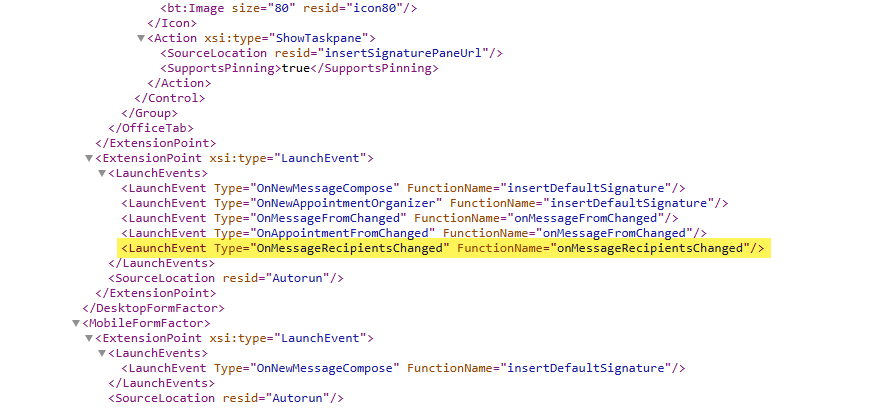
- Locate the section where the launch events are defined (see highlighted example below).
- Insert the following line in the same section:
<LaunchEvent Type="OnMessageRecipientsChanged" FunctionName="onMessageRecipientsChanged"/>
- Save the changes to the XML file.
Step 2: Redeploy the updated add-in
If the add-in has already been deployed:
- Go to Microsoft Integrated Apps.
- Select Update Add-in.
- Upload the modified manifest (XML) file to apply the changes.
Once deployed, the add-in will dynamically update the email signature based on the recipient—ensuring the correct signature is used for internal and external emails.
Note
It may take up to 72 hours for Microsoft Integrated Apps to replicate the update.
After deployment, test the functionality once your Recipient email rules are configured.
