
Short answer:
You cannot centrally control the compose font in New Outlook using the Xink add-in. Instead, set the default font using Exchange Online PowerShell for individual users or across the organization.
Aligning the email font and the email signature font ensures a consistent and professional appearance. Using standard fonts such as Arial, Calibri, or Helvetica helps maintain brand consistency and readability.
In New Outlook, centrally setting the compose font via an add-in is not supported. This is a Microsoft limitation, as Outlook add-ins (including Xink) cannot modify core client settings like default fonts or font sizes.
Change the compose font and font size per user
Example: The default font is set to Aptos with font size 12.
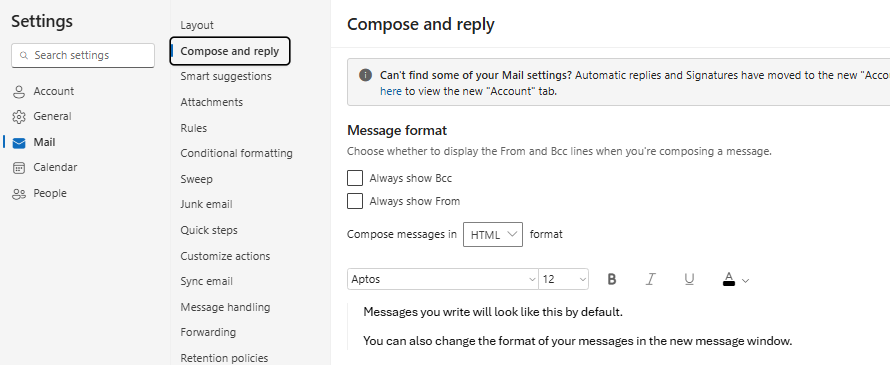
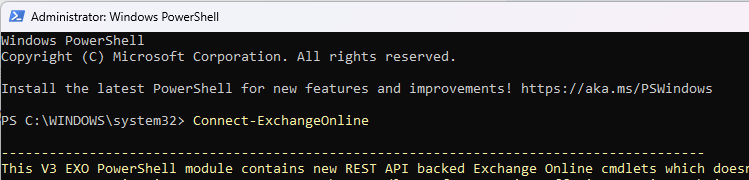
First, connect to Exchange Online (enter your admin credentials):
Connect-ExchangeOnline
Set the default font and font size for a user:
Set-MailboxMessageConfiguration -Identity username@domain.com -DefaultFontName Arial -DefaultFontSize 10

Restart Outlook and verify the changes by composing a new email.
Apply font settings across all users
To apply the same font and size across your organization:
Get-Mailbox -ResultSize Unlimited | Set-MailboxMessageConfiguration -DefaultFontName "Arial" -DefaultFontSize 10

Alternatively, you can use the script below. Update the font name and size as needed:
# Query all mailboxes
$Mailboxes = Get-Mailbox -ResultSize Unlimited

# Loop through each mailbox
foreach ($mailbox in $Mailboxes) {
    Set-MailboxMessageConfiguration -Identity $mailbox.Identity -DefaultFontName Arial -DefaultFontSize 10
}