
Short answer:
Use Xink Campaign analytics to track opens, clicks, and performance across campaigns and employees, and optimize your email signature marketing.
Email signature marketing turns every email into a branding opportunity. To understand performance and improve results, you need clear insights—this is where Xink Campaign analytics helps.
Use built-in analytics to track campaign views, clicks, and employee performance. You can also integrate Google Analytics for deeper insights.
Campaign click performance
- Campaigns: Number of active campaigns in the selected time period
- Click-throughs (CT): Number of clicks generated by campaigns
- Opens: Number of times campaigns were viewed (including forwards and replies)
- Click-through rate (CTR): Clicks divided by opens
CTR benchmarks:
• ~1% = good
• ~5% = excellent
• <0.5% = consider improving your call-to-action (CTA)

Below the graph, you can view:
- Top 5 campaigns: Campaigns with the highest engagement
- Top 5 senders: Employees generating the most clicks

Download campaign reports
Export campaign performance data (opens and clicks) across all employees:
- Click the gear icon
- Select Download

Email signature update metrics
- Employees: Total number of employees
- Active employees: Employees with updated signatures
- Signatures: Total active signatures
- Last day’s update: Updates across all clients since midnight (UTC)

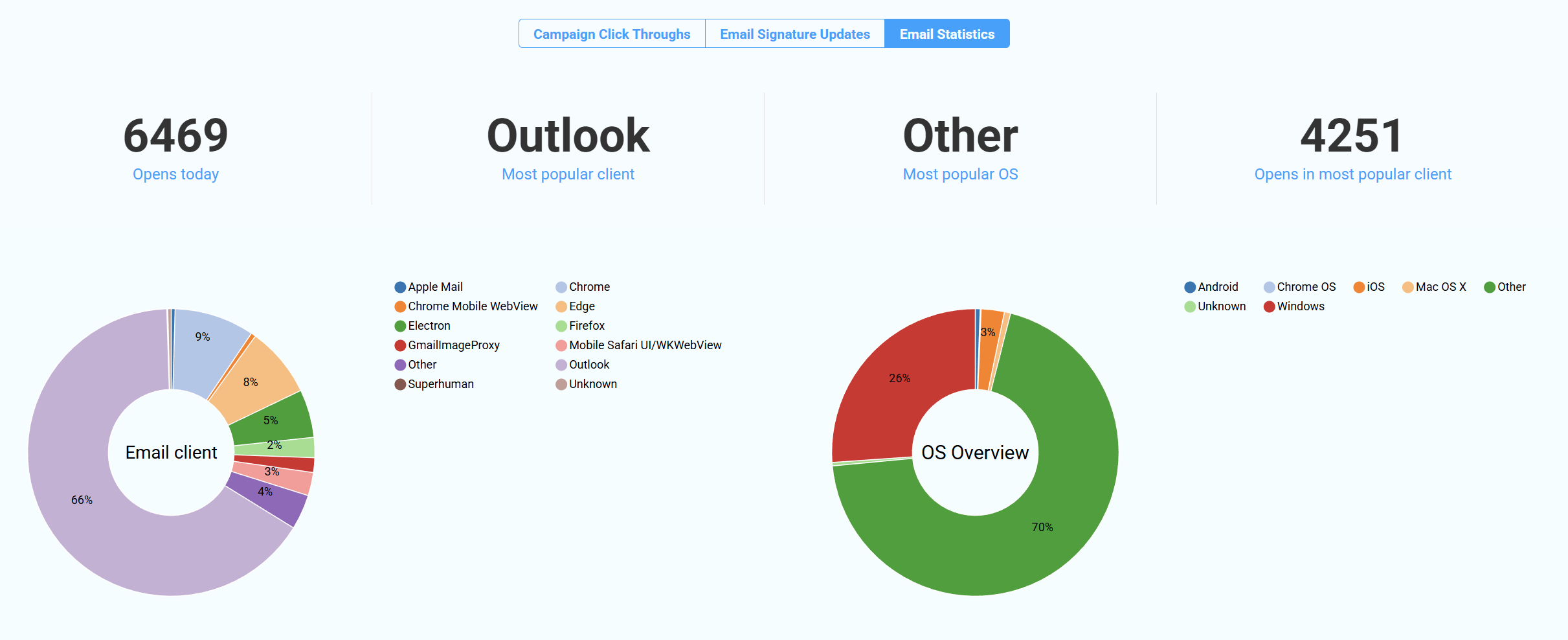
Email statistics: understand your audience
Gain insight into which email clients and devices your recipients use. This helps you optimize both campaign design and email layout.
- If most users are on desktop, prioritize wider layouts
- If many users are on mobile, optimize for ~320px width
Note: Email statistics are only collected from emails that include an active Xink campaign.
Exclude internal traffic from analytics
Exclude your company’s internal traffic to ensure accurate campaign metrics:
Go to Preferences > General > IP Exclusion

