
Short answer:
Use the RESET feature to fix missing, outdated, or unsynced Outlook signatures. It clears the local cache and forces Outlook to download fresh signature data from Xink.
Summary: If Outlook signatures are missing, outdated, or not syncing as expected, the RESET feature clears the local cache and forces the add-in or client to download fresh signature data from the Xink server. This usually resolves most local cache and sync issues without requiring a reinstall of Outlook.
When to use RESET
- The signature preview is blank or shows an old version.
- Changes made in the Xink portal are not appearing in Outlook.
- There are sync errors or inconsistent behavior across users.
What RESET does
RESET removes local configuration/cache used by the Xink client or add-in and reinitializes the app. After RESET, Outlook/Xink retrieves a fresh configuration and signatures from the Xink server.
Note: RESET affects only the device's local cache/config. It does not delete your Xink policies, templates, or server-side settings.
Before you begin
- Save any unsent emails.
- Close other Outlook windows if possible.
- Ensure you have a stable internet connection for the re-sync.
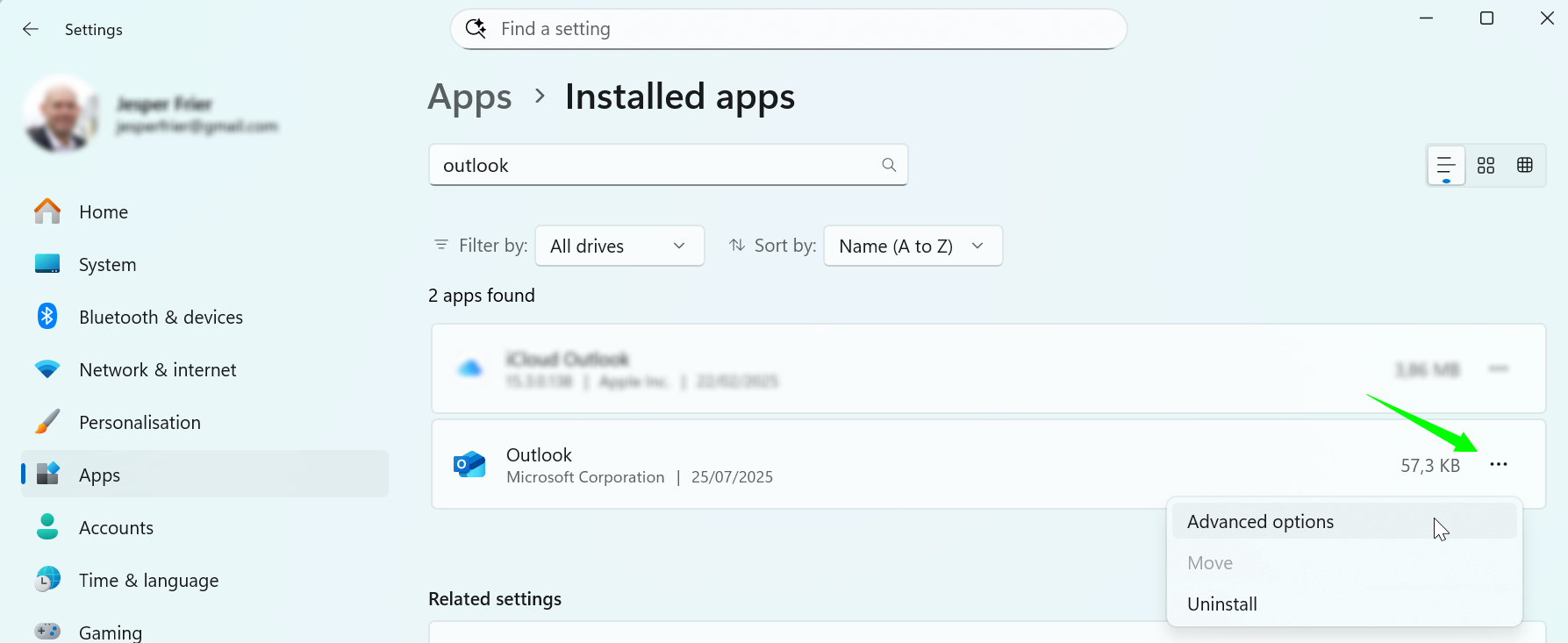
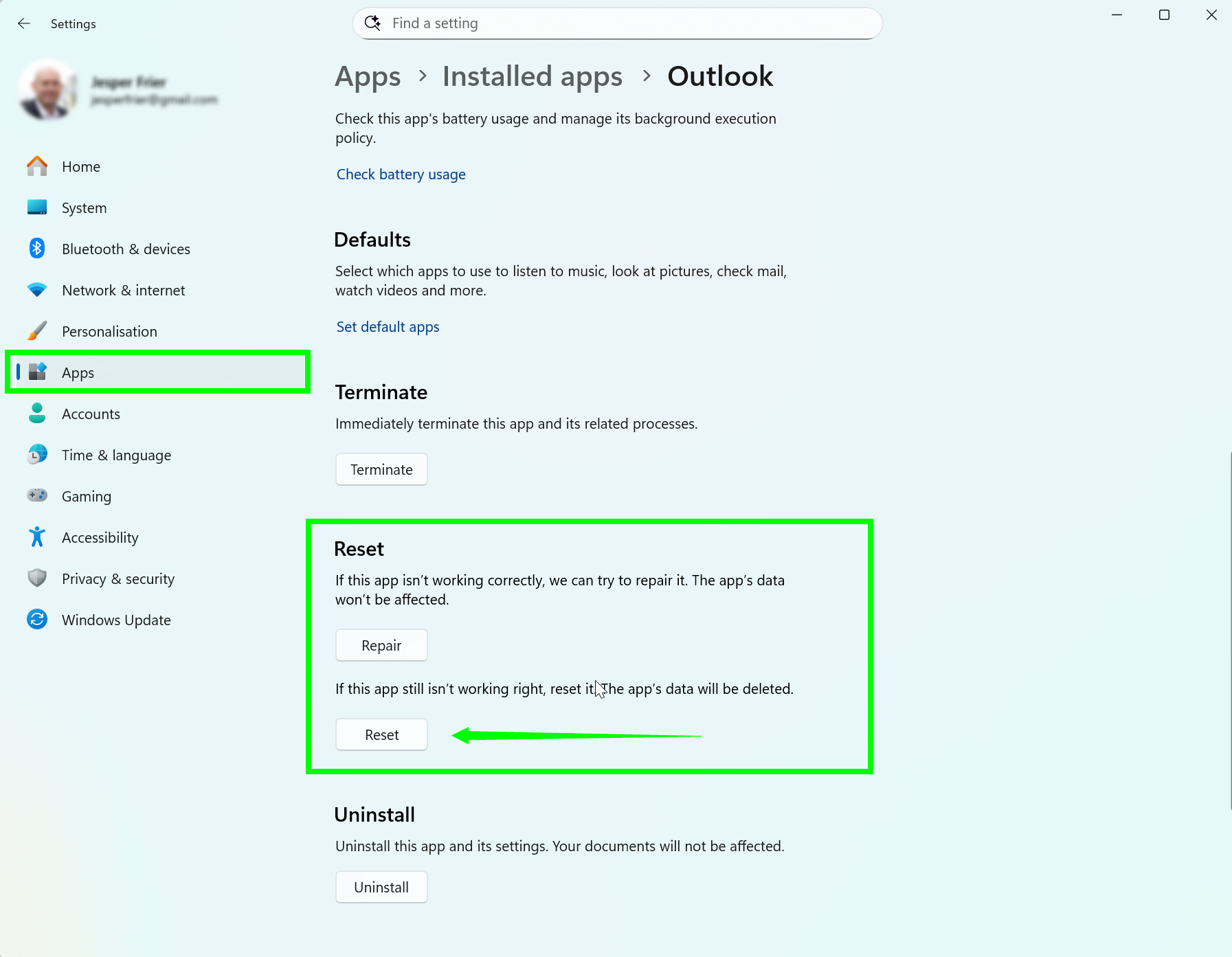
Windows: Run RESET
- Open the Outlook application on your Windows device as shown below.
- Click RESET.
- Confirm if prompted.
- Wait for the app to reinitialize and reload the configuration.
- Reopen Outlook and verify your signature in New Email and Signatures (if applicable).
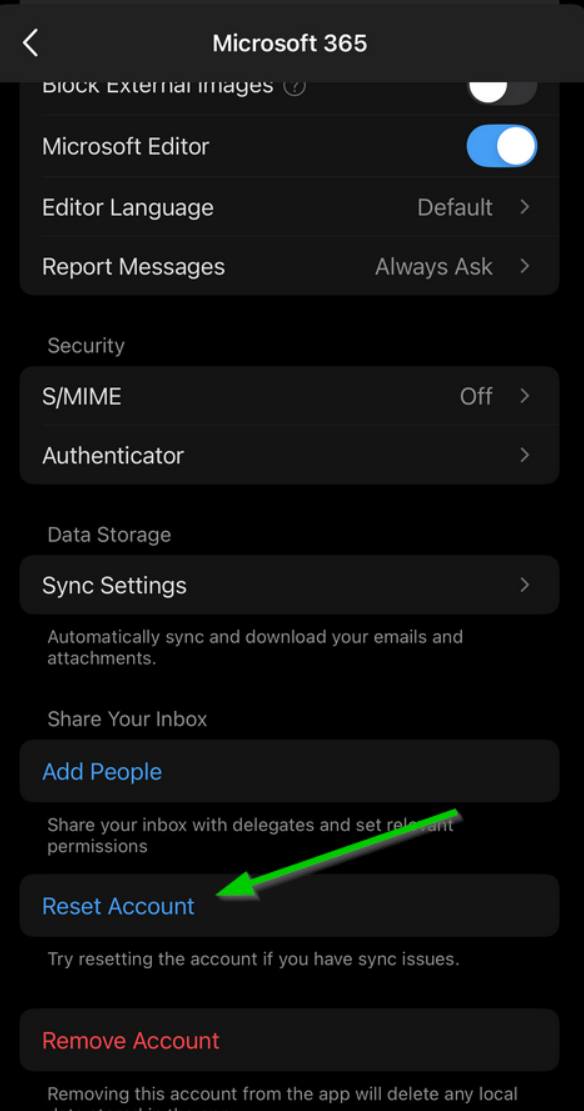
Outlook Mobile (iOS & Android): Reset the account
- Open the Outlook mobile app.
- Go to Settings > Accounts.
- Select the mailbox you want to refresh.
- Tap RESET ACCOUNT.
- Reopen Outlook and create a new email to confirm the correct signature appears.
Troubleshooting
- Still seeing the old signature? Close and reopen Outlook, then create a New Email to test. If multiple profiles are used, confirm the correct one is active.
- No signature after RESET: Verify the user has an assigned Xink policy/template and required attributes (e.g., name, title).
- RESET option not visible: Update the add-in/app or check permissions.
- Intermittent sync: Review connectivity, VPN, firewall, or proxy settings that may block Xink services.
Next steps
If the issue continues after RESET, collect details (device, Outlook version, steps taken, and timestamp) and contact your IT administrator or Xink support. Include logs if requested.
