
Overview
Short answer:
Use First-Match for a single targeted campaign. Use All-Match when you need multiple elements—such as campaigns and legal disclaimers—to appear together.
Xink offers two rule modes for managing how email signatures and campaigns are applied: First-Match and All-Match. These modes cannot be combined, so choosing the right one depends on your setup.
The All-Match rule mode is recommended when you want to run campaigns while also including department- or country-specific legal disclaimers.
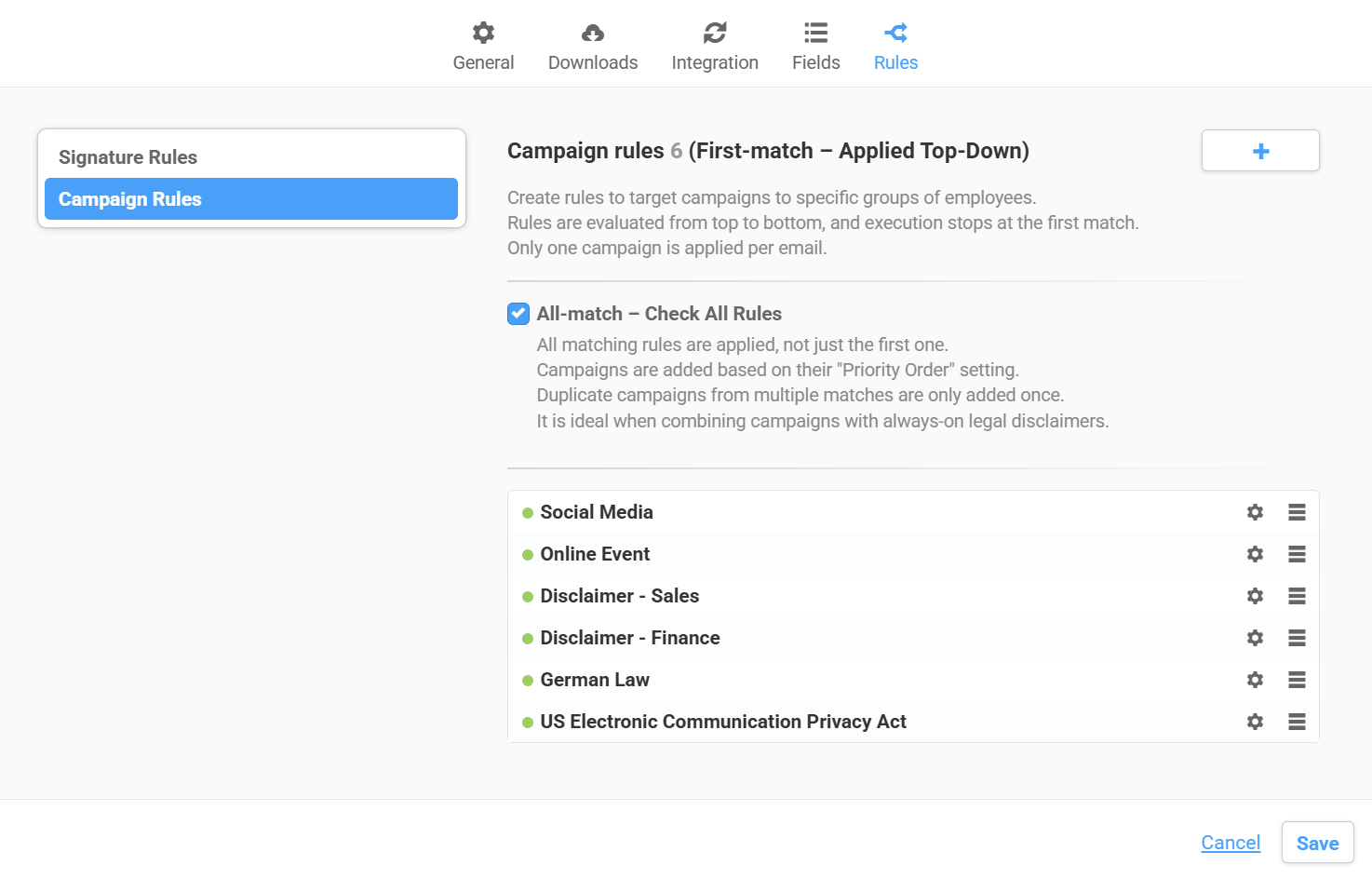
Campaign Rule Modes Explained
First-Match Rule
- Applies only the first matching rule.
- Best for single, targeted campaigns based on conditions (e.g., sender or recipient).
- Once a match is found, no further rules are evaluated.
- Cannot be combined with other matching rules.
Use this mode when you want precise targeting and only one campaign applied per email.
All-Match Rule
- Applies all rules that match the defined conditions.
- Ideal for combining campaigns with legal disclaimers or other signature elements.
- Matching elements are added in priority order (e.g., campaign first, disclaimer last).
Use this mode when you need multiple elements—such as marketing content and compliance text—in the same email.
How to Set Up All-Match Rules
- Log in to the Xink Admin Portal
- Go to Preferences > Rules
- Select All-Match as the rule mode
- Create separate rules for each element:
- Email campaign
- Legal disclaimer
- Define conditions (e.g., all users, specific departments, locations)
- Adjust the order if needed (campaigns typically appear above disclaimers)
- Save and test by sending a sample email
Best Practices
- Always include the correct legal disclaimer in relevant rules
- Keep disclaimers clear and concise
- Update campaigns regularly to keep content relevant
- Use the Preview tool to verify layout and rule order
