
Short answer:
Disable the Xink-Auto-ReRouting-Catcher rule in Microsoft 365 to stop emails from being routed through the Xink server-side service.
Applies to: IT Admins and Microsoft 365 Administrators
Follow these steps to disable the Xink server-side rerouting rule.
Disable the Xink Mail Flow Rule
- Sign in to Microsoft 365 Admin Center
Go to https://admin.cloud.microsoft/ and sign in with your Global Administrator account. - Open Mail Flow Rules
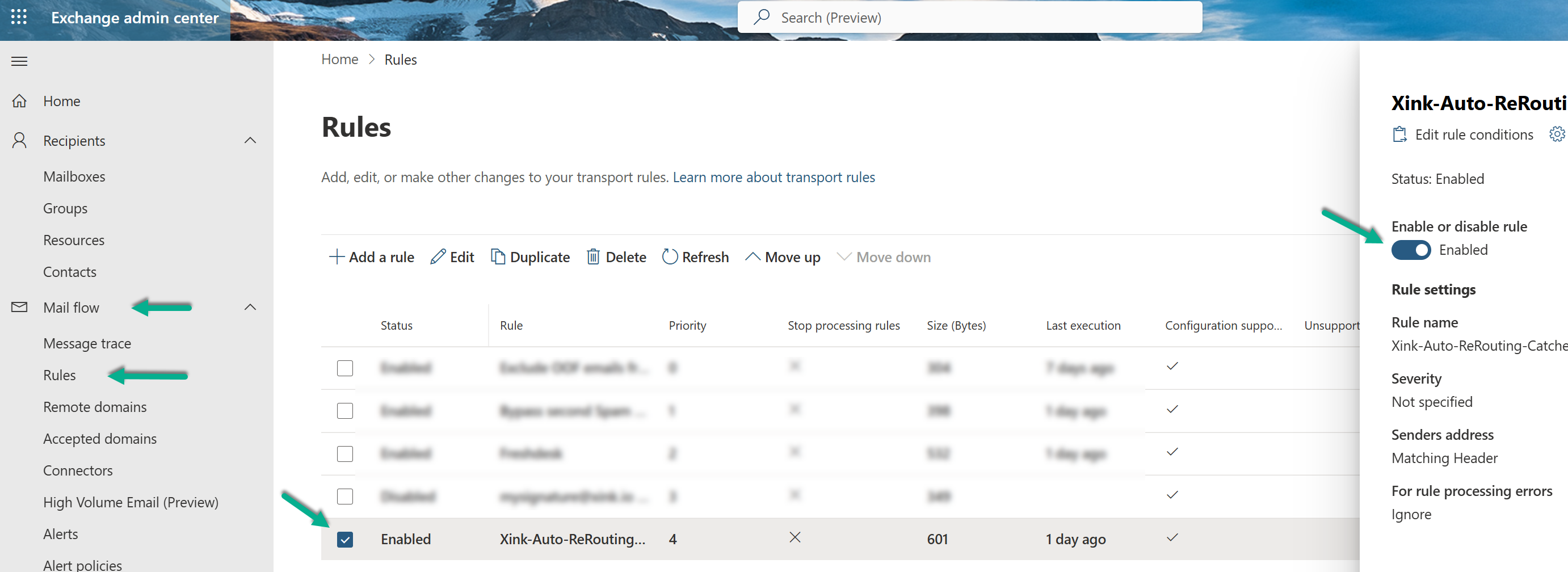
Navigate to Exchange Admin Center → Mail flow → Rules. - Disable the rule
Locate "Xink-Auto-ReRouting-Catcher" and untick (disable) it.
Expected Result
- The rerouting rule is disabled.
- Emails are no longer processed by the Xink server-side service.
