
Short answer:
If emails are rejected or bounce when using Xink server-side, allow the Xink server IP in your spam filter, firewall, or Microsoft 365. You can also exclude the IP in your transport rule.
Xink ReRouter accepts messages from Microsoft 365, applies the email signature, and returns the message back to your Microsoft 365 tenant.
If messages are rejected or not delivered, it is typically caused by a third-party spam filter or firewall blocking the Xink server IP.
To resolve this, you can:
- Add the Xink server IP to your whitelist / allow list
- Exclude the IP in your transport rule
Exclude Xink server IP in the transport rule
1. Identify your Xink data center
Check the smarthost configured in the Xink-Auto-ReRouting-Out connector.
Example: xink-rerouter-us.eastus.cloudapp.azure.com indicates the US data center.

2. Find the corresponding IP address
| 52.186.121.110 | US |
| 40.68.36.243 | EU |
| 51.145.10.226 | UK |
| 13.88.251.46 | CA |
| 23.101.232.30 | AU |
Tip: You can also contact Xink Support to confirm your data center and IP address.
3. Update the transport rule
Edit your transport rule in Exchange Online or your third-party filter/firewall.
Add an exception:
- The sender is...
- Select IP address is in any of these ranges or exactly matches
- Enter the identified IP address

4. Save the rule
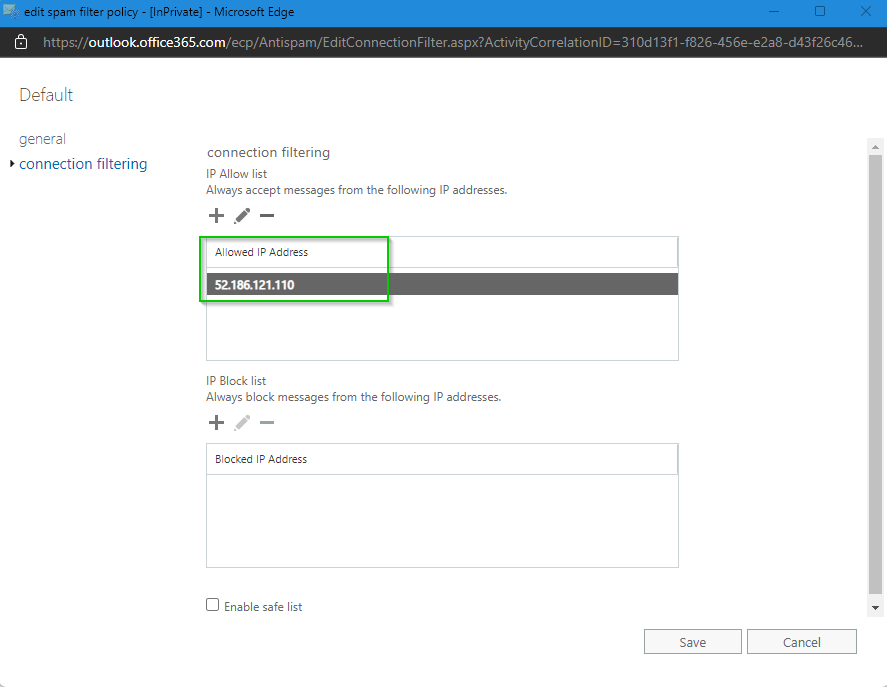
Add Xink server IP to Microsoft 365 allow list
- Go to Protection in the Exchange Admin Center.
- Open the Connection Filter tab.
- Click Edit and navigate to Connection Filtering.
- Click the "+" under IP Allow list and add the Xink server IP.
Note: In the new Exchange Admin Center, go to Other features > Connection filter.
5. Save the configuration
Next steps
After applying these changes, send a test email to confirm that messages are delivered correctly and signatures are applied.
