
Short answer:
The Server-side only option ensures that email signatures are applied to all outgoing emails when they are sent, including those from Outlook and other email clients.
Important:
Only enable this option if you are NOT using the Outlook add-in.
If the Outlook add-in is enabled, signatures are inserted directly while composing emails, and server-side should remain disabled.
Learn more about the Outlook add-in
With server-side enabled, the signature is automatically inserted in the correct position within the email conversation. It will not be added at the bottom of the entire email thread.
How it works
When replying to or forwarding an email, Xink detects a message divider in the conversation.
If a divider is found, the reply signature is inserted above the divider, ensuring correct placement in the email thread.
Dividers are automatically recognized in:
- Outlook for Windows
- Outlook for Mac
- Outlook on the web
Example:

Requirements
To use server-side signatures, you must have a Microsoft 365 environment with mail flow (transport rules) configured.
Configure server-side
Before enabling this option, complete the server-side setup in Microsoft 365:
How to configure rerouting using the Office 365 web console
Enable “Server-side only”
- Open Preferences in the Xink portal.
- Enable Server-side only (incl. Outlook).
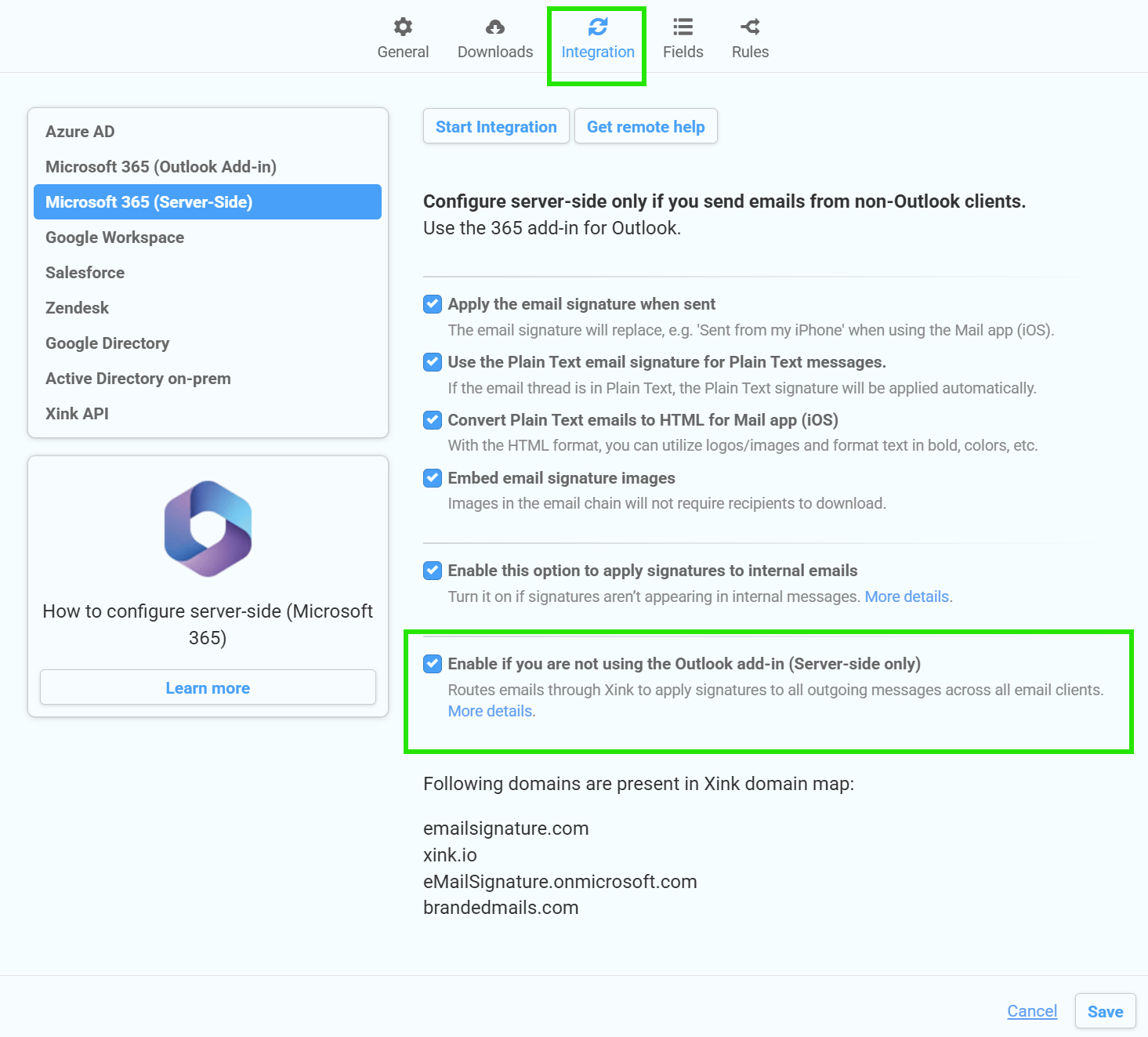
Once enabled, all outgoing emails will receive the Xink signature during the Microsoft 365 mail flow process.
Best practice
- Use Server-side only when you need full control and consistency across all devices.
- Use the Outlook add-in when users need to see and manage signatures while composing emails.
- Avoid enabling both methods at the same time.