
Short answer:
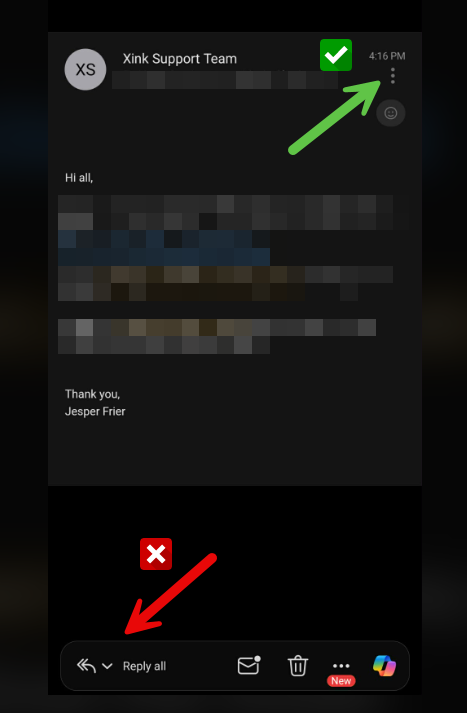
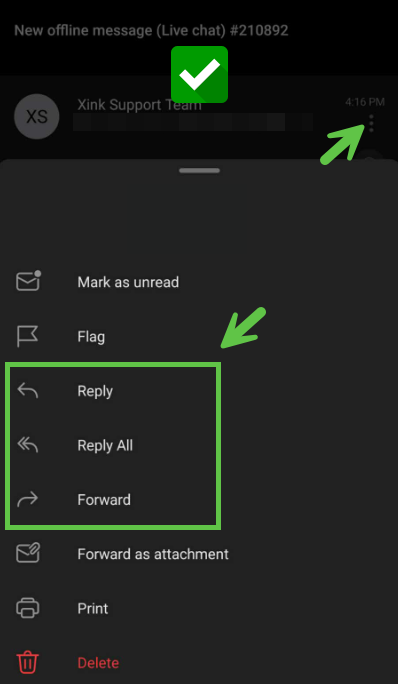
In Outlook Mobile, the signature may not be visible when using the quick reply field. To see your signature while composing, use the three-dot menu and select Reply or Forward. The signature is still applied even if it is not visible.
Why does this happen?
The Outlook mobile app includes two reply modes:
- Quick reply field (bottom of the screen)
- Full email editor (opened via the three-dot menu)
When using the quick reply field, Outlook hides the signature to reduce on-screen clutter.
When using the full editor, the signature is displayed as expected.
Step-by-Step: Show your signature while composing
- Open the email you want to reply to or forward.
- Tap the three-dot menu (top-right corner).
- Select Reply or Forward from the menu.
This opens the full editor where your signature is visible.
What if I use the quick reply field?
If you reply using the field at the bottom of the screen:
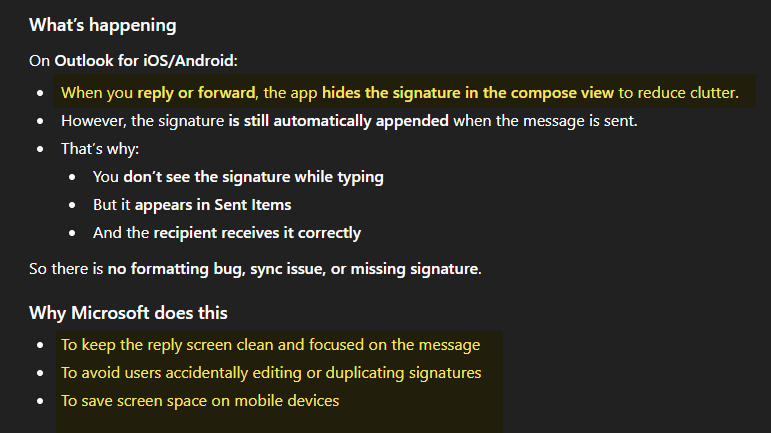
- The signature is not visible while typing
- The signature is still automatically added when the email is sent
What this means for email signatures
This is expected behavior in Outlook Mobile and not an issue with Xink.
Your email signature will:
- Be visible to recipients
- Appear correctly in your Sent Items
Tip
Use the full editor when you want to preview your signature while composing.