
Short answer:
If profile photos from Azure AD (Entra ID) or Microsoft 365 are not visible in Xink, it is typically because photo import is not enabled or the image size or resolution exceeds supported limits.
If your Azure AD (Entra ID) or Microsoft 365 profile photos are not appearing in the Xink admin portal, it is typically due to one of the following reasons:
Why profile photos are not showing
1. Photo import is not enabled
Photo import is disabled by default to reduce synchronization load. To enable it, contact our support team via the Xink Helpdesk or use LiveChat in the Xink admin portal.
2. Profile photo resolution or file size exceeds limits
High-resolution images or files larger than 1 MB can cause synchronization issues. Large images may be skipped or interrupt the sync process.
How to fix large photo issues
Use Microsoft Graph Explorer to identify and select a lower resolution for profile photos:
- Open the Microsoft Graph Explorer.
- Log in with your Microsoft 365 admin account.
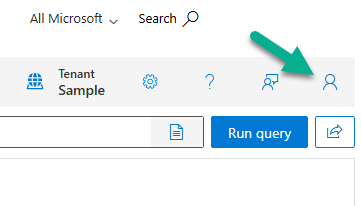
- Paste the following URL into the address field, replacing
testuser@domain.comwith an active mailbox:https://graph.microsoft.com/v1.0/users/testuser@domain.com/photos
- Click Run Query.

- Review the available image sizes and choose a lower resolution that fits your needs.
For example, if your email signature uses a headshot size of 80x80, selecting a resolution such as 96x96 is typically sufficient.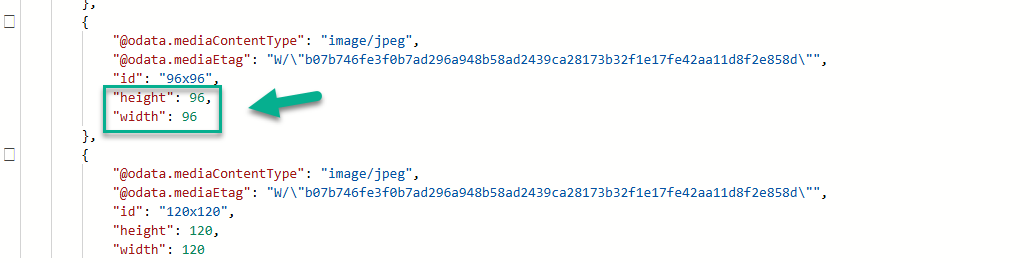
Once you have identified the appropriate resolution, contact our support team. We will configure the backend so the next Azure AD sync uses the selected image size.