
Short answer:
Xink supports TOTP-based multi-factor authentication. You can use apps like Microsoft Authenticator, Google Authenticator, or any trusted TOTP app to secure your account.
Recommended TOTP applications
We recommend using Microsoft or Google TOTP applications. However, you can use any authenticator app you already trust, as long as it supports TOTP (Time-Based One-Time Passwords).
Supported apps include:
- Microsoft Authenticator
- Google Authenticator
- FreeOTP
- Other TOTP-compatible apps
TOTP is a standard authentication method, so most authenticator apps will work.
Enable multi-factor authentication (MFA)
To configure MFA for your account:
Go to Preferences → General Tab → Security → Multifactor authentication policy
You can choose between three options:
- Disabled (default): MFA is turned off
- Allowed: MFA is optional and can be enabled by the account admin
- Enforced: MFA is required for all users. If not configured, setup is required at next login

Download an authenticator app
You can download a TOTP app from:
Apple App Store or Google Play Store
Recommended apps:
1. Microsoft Authenticator
2. Google Authenticator
Apple Store:

Play Store:

Set up MFA
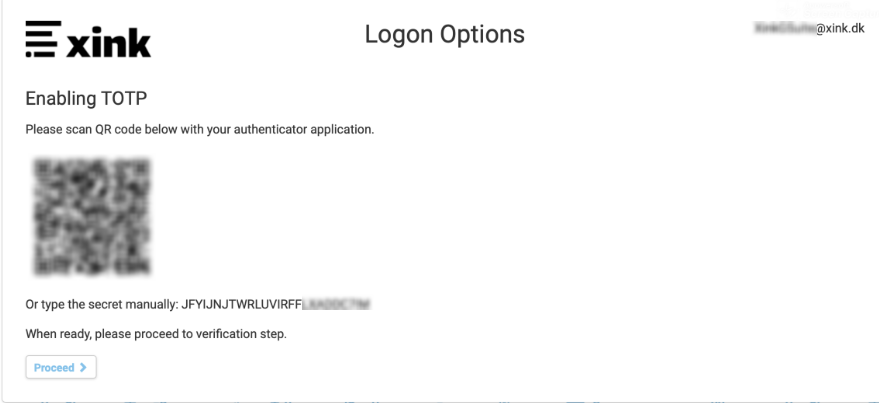
When MFA is enabled, you will see the setup screen when logging in. Click Start to begin.

To complete setup:
- Install a TOTP authenticator app on your phone
- Open the app
- Scan the QR code shown on screen
- Enter the generated code to verify setup
Phone lost or common issues
Google Authenticator:
https://support.google.com/accounts/answer/185834?hl=en
Microsoft Authenticator:
https://docs.microsoft.com/en-us/azure/active-directory/user-help/microsoft-authenticator-app-faq
