
Short answer:
Use a Field Type: Check to let employees control elements in their email signature. When the checkbox is selected, content is shown; when it is not selected, the content is hidden using a CASE statement in the template.
This guide explains how you can create flexible email signature templates that allow employees to control selected elements in their own signatures.
By using Field Type: Check, you define which elements employees can turn on or off—without needing administrator involvement.
This ensures consistent company branding while still giving employees controlled flexibility.
How it works:
Admin creates a checkbox field
↓
Employee selects or clears the checkbox
↓
Signature template shows or hides content
Example: Show or hide mobile number
In this example, employees can decide whether their mobile numbers are included in their email signatures.
Step 1 — Create a field employees can control
- Go to Fields in the Xink admin portal.
- Click Add Field.
- Enter a field name, e.g. Cello.
- Set Field type (Selection) to Check.
- Enable Editable by the employee.
- Click Save.
Field configuration example:
Field name: Cello
Field type: Check
Editable by the employee: Enabled
Example:
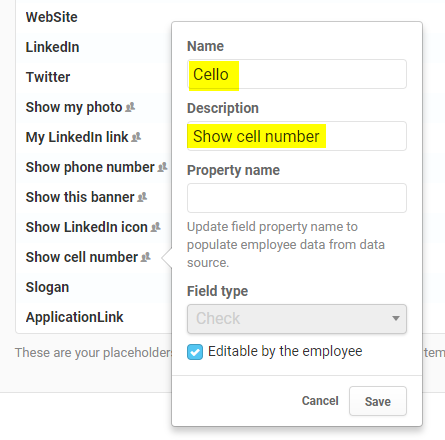
Employees will now see this checkbox in their signature settings.
Step 2 — Add logic to the signature template
Update your signature template to control when the mobile number is shown.
Example:
{$$CASE(Cello)$$WHEN(False)$$THEN()$$ELSE(M: ((Mobile)) )$$}Result:
- Checked → Mobile number is shown
- Unchecked (False) → Mobile number is hidden
Step 3 — Employee selects their preference
Employees can now manage this directly in their signature settings.
☑ Show mobile number
☐ Hide mobile number
Example from “Edit contact details” in the Outlook add-in:
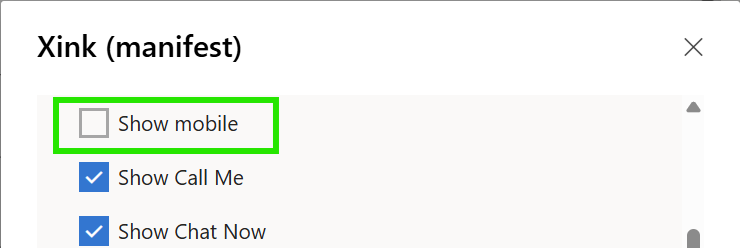
The signature updates automatically based on the employee’s selection.
Other use cases
You can use the same approach for other optional elements:
Employee photo
Checkbox ON → Show photo
Checkbox OFF → Hide photo
Marketing banners
Banner A → Campaign banner
Banner B → Event banner
None → No banner
Test your setup
- Open the signature template
- Click Preview
- Select different employees
- Verify the output
Best practices
- Only allow control of optional elements
- Keep core branding locked
- Test with multiple users before publishing