
Short answer:
Invite employees to install the Xink Mac app and enter their personal access code to update Outlook (Mac) email signatures.
This method updates your company email signatures in Legacy Outlook for Mac.
- Great for trials with no IT setup required
- Suitable for small teams
- Works well for remote users or non-domain devices
Not ideal for larger organizations with many users.
→ Recommended: Update signatures across all devices without user interaction
How to invite employees
- Go to the Employees section.
- Find the user and click the gear icon.
- Select Send Invitation Email.

Invite multiple employees
Select multiple users or click Select All, then choose Send Invitation Email.

Employees will receive an invitation email from their Xink administrator.
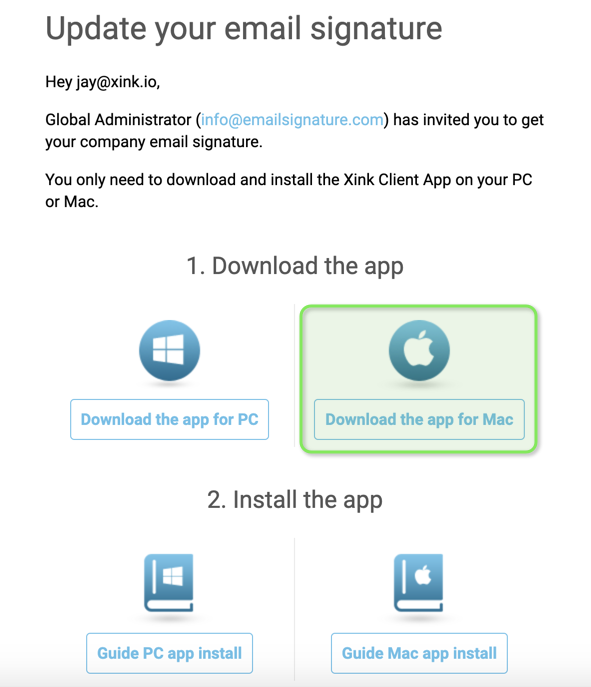
The email includes a link to download the app:
Download the Xink app for Mac
Install the Xink app on Mac
- Open the downloaded Xink.pkg file and complete the installation.

- Launch the Xink app from the Applications folder.
If prompted, enter your Mac password and select Always Allow.


If you are repeatedly asked for a keychain password, see Apple’s guide:
Fix keychain password prompts
- Enter your personal access code from the invitation email.

Click Update signatures. After a few seconds, you will see confirmation:


Click OK to finish.

The Xink icon with a green checkmark in the menu bar confirms the user is connected and updated.

- Assign the signature in Outlook:
Go to Outlook > Preferences > Signatures and set the default and reply/forward signatures.

Note: The Preferences menu may be disabled when using a domain token. In that case, remove the domain token and use an access code instead.

