
Short answer:
You can manually install the Xink Outlook add-in using the manifest file. For company-wide deployment, we recommend using the Microsoft 365 Admin Center deployment method.
Important
Installing the Xink add-in directly from the Microsoft Store will not work. You must use the manifest file downloaded from the Xink portal.
When should you use manual vs. centralized deployment?
- Use manual installation if:
- You are testing the add-in
- You want to validate the setup before rollout
- Only a few users need access
- Use Microsoft 365 Admin Center deploymentif:
- You want all users to get the add-in automatically
- You need a consistent setup across the organization
- You want easier maintenance and updates
Step 1: Download the manifest file
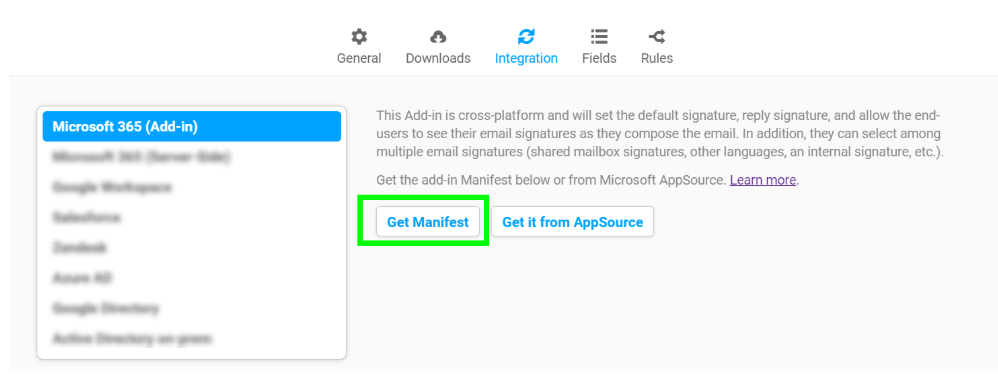
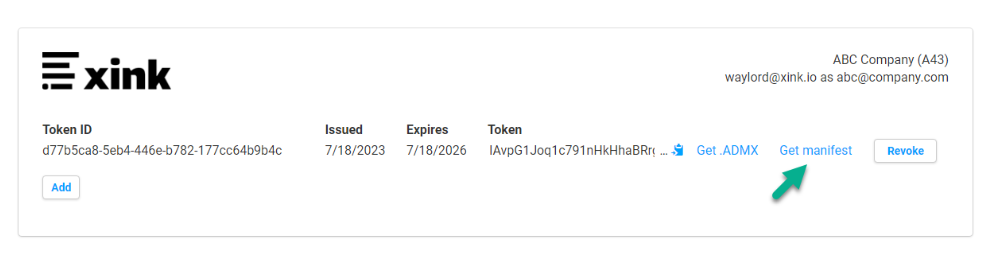
- Go to Preferences > Integration > Microsoft 365 (Outlook add-in) in the Xink portal.
- Download the manifest (.xml) file.
Step 2: Open Outlook on the web
- Go to Outlook on the web.
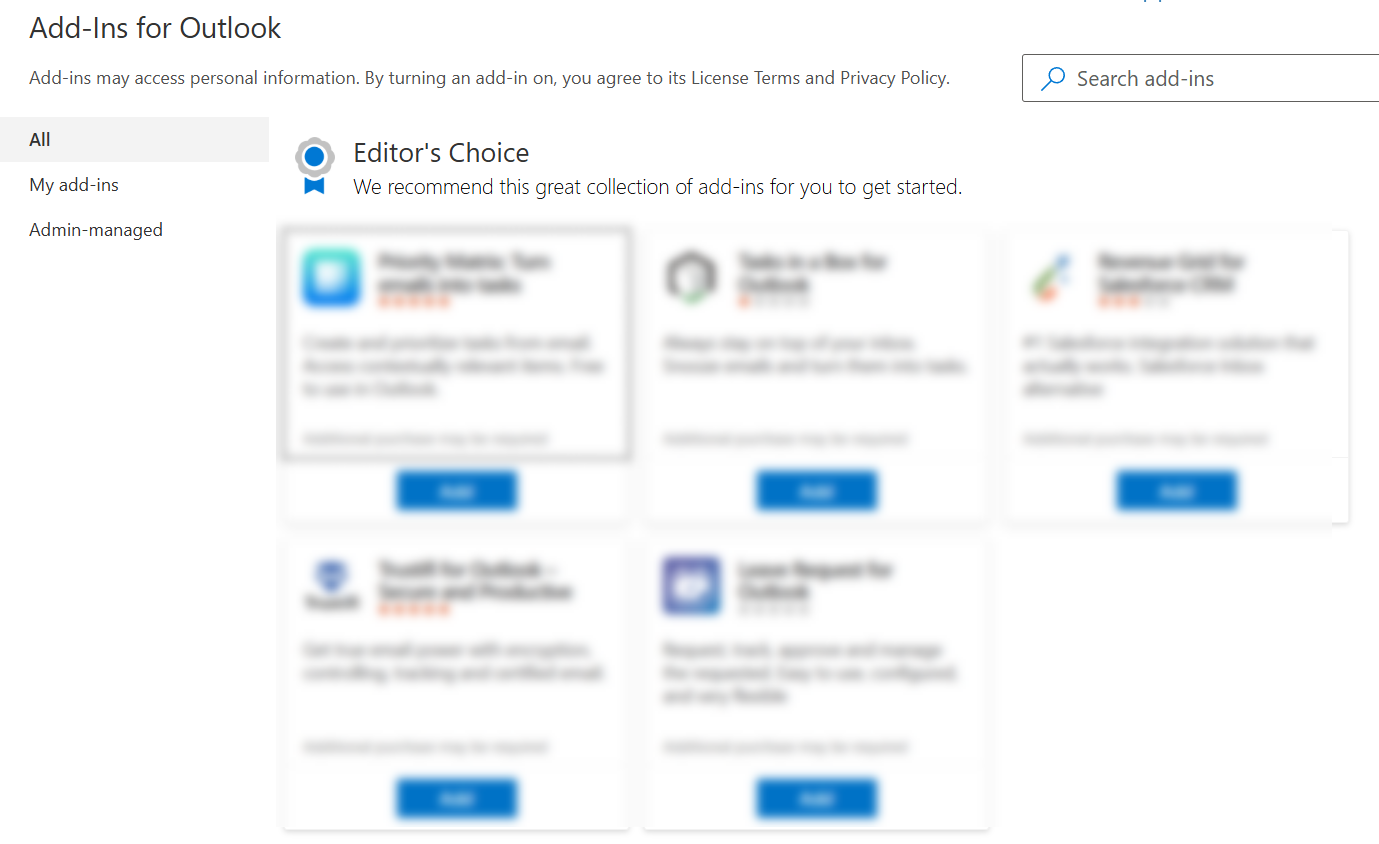
- Open the Add-ins for Outlook window.
Step 3: Upload the add-in
- Select My add-ins.
- Under Custom Add-ins, click Add a custom add-in.
- Select Add from file.

Step 4: Install the add-in
- Select the downloaded .xml manifest file.
- Click Install.
Recommendation
Manual installation is useful for testing or individual users. For production environments, deploy the add-in centrally via the Microsoft 365 Admin Center to ensure consistent availability and automatic updates for all users.
Deploy the Xink Outlook Add-in via Microsoft 365 Admin Center
