
Short answer:
You can automatically read users from your on-premises Active Directory into Xink with the Xink ADExport tool. This keeps your Xink Employees list up to date when users are added, changed, or removed in Active Directory.
This is the recommended way for IT to maintain employee data, such as name, title, mobile number, email address, and other signature fields, without updating users manually in Xink.
You can first run ADExport from your own domain-joined PC to test the configuration. After you confirm that users are exported correctly, you can move the tool to a server and run it as a scheduled task in production.
You can also maintain additional signature data in Xink that you may not want to store in Active Directory, such as LinkedIn, Xr, headshots, etc..
What does ADExport do?
ADExport is a read-only export tool. It reads user data from your on-premises Active Directory and pushes the selected user data to your Xink account.
- ADExport does not modify your Active Directory.
- ADExport only reads data.
- ADExport cannot write or update anything in Active Directory.
- ADExport does not export passwords.
- ADExport exports only the user fields you specify in Preferences > Fields.
- ADExport means Active Directory Export. It exports data from AD to Xink only.
- ADExport exports user information only. It does not export schema data or other directory objects.
Before you begin
- Use a Windows PC or Windows Server that is joined to the domain you want to read users from.
- Install the latest .NET Service Pack.
- Make sure port 443 (HTTPS) is open so the tool can connect to Xink.
- Your antivirus software might block the executable, so you may need to allow the file to run and access the internet through port 443.
- Make sure all users you want to export have an email address.
- Only users with a primary SMTP email address are exported to the Xink portal.
- Only unique email addresses not already used in other Xink accounts can be imported.
DO NOT RUN the ADExport tool on a Domain Controller. Use any domain-joined Windows PC or server instead.

Step 1: Download the ADExport tool
Log in to your Xink account, click your name in the upper-right corner, and select Preferences.

Go to Integration, click Active Directory on the left-hand side, then click Download Export Tool and save the file. It is a single file with no installation required.
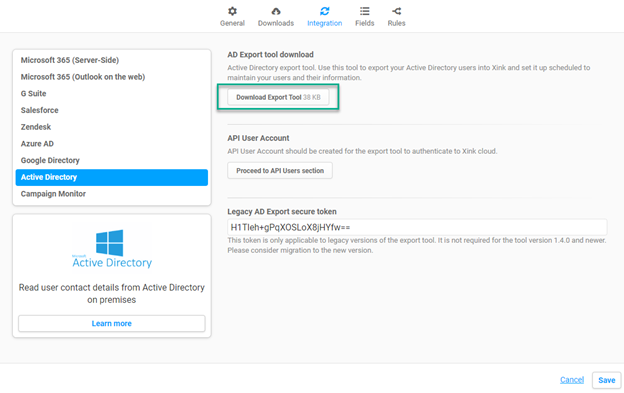
Note about AD Export Token: This token applies only to legacy versions of the export tool. It is not required for tool version 1.4.x. Please consider migrating to the newer version if you still use a legacy release.
Step 2: Create an API user
Create a dedicated API user in Xink for the export tool.


Assign permission to the newly created API user. The user must have the Automated Employee Data Push permission.

Step 3: Test the export manually
Before you schedule the export, run the tool manually to confirm it exports the expected users.
Start on your domain-joined Windows PC. If you need to export only a subset of users, such as a single OU or AD group, use one of the switches described later in this guide.
When you are ready for production, you can move emsadexport to a server and configure it to run daily with Windows Task Scheduler. You can choose your own schedule for how often Xink updates user data from Active Directory.
How to run emsadexport
You can run the file from a:
- .BAT file
- .CMD file
- Command Prompt window after browsing to the folder where you saved the file

Export switches
The export tool supports several switches. You can add a switch anywhere after the emsadexport file name.
/user or /u and /secret or /s
These switches define the Xink API username and password used to push data to your Xink account.
You must include the /secret switch when exporting.
/user:"YourAPIAccount@SRV" /secret:"YourAPIAccountPassword"
/domain
Exports only users who belong to a specific OU.
Users in sub-OUs are also included.
/group
Exports only users who belong to a specific Active Directory group. Both security groups and distribution groups are supported.
The value must be the group name, not the OU name.
Users in nested sub-groups are not included.
If the group name contains spaces, place it in quotes. Example: /group:"Sales North America".
Reading users from groups is slower than reading from OUs.
/ltls
By default, TLS 1.3 is enforced. This switch uses TLS 1.2 instead.
/remove+
This switch removes users from Xink who are not included in the current export.
Example: If your Xink account currently has 100 users and the next export finds only 2 users, those 2 users remain and all others are removed from Xink.
C:\emsadexport.exe /user:"YourAPIAccount@SRV" /secret:"YourAPIAccountPassword" /remove+
/field
This switch supports your own custom AD attribute names if you use an extended AD schema. Learn more.
C:\emsadexport.exe /user:"YourAPIAccount@SRV" /secret:"YourAPIAccountPassword" /field:ATTRIBUTE1 /field:ATTRIBUTE2
/ldaps
Use this switch to enable LDAP over SSL (LDAPS).
/dryrun
With this switch, no data is exported to Xink. Instead, the tool displays which users would be included. This is useful during initial setup to verify your selection before sending data to Xink.
/nd
This switch removes the default-mapped fields. Combined with one or more /field switches, you can choose exactly which attributes are exported. This is useful if, for example, you want to bypass the Photo field when images exceed the 4 MB limit.
C:\emsadexport.exe /user:"YourAPIAccount@SRV" /secret:"YourAPIAccountPassword" /nd /field:mail /field:displayname /field:telephoneNumber /field:title
/ug
This switch pulls user groups from Active Directory. It does not work when users are read from an OU. Learn more in this KB.
C:\emsadexport.exe /user:"YourAPIAccount@SRV" /secret:"YourAPIAccountPassword" /group:"My Test" /ug
Examples
Example #1
Export all users from Active Directory who have an email address:
C:\emsadexport.exe /user:"YourAPIAccount@SRV" /secret:"YourAPIAccountPassword"
Example #2
Export users from the OU OU=Users,OU=Company Name,DC=gt,DC=local. All other existing users in your Xink account remain unchanged.
C:\emsadexport.exe /user:"YourAPIAccount@SRV" /secret:"YourAPIAccountPassword" /domain:"OU=Users,OU=Company_1OU,DC=Company_1,DC=internal"
Example #3
Export users from the OU OU=Users,OU=Company Name,DC=gt,DC=local and remove all other users from the Xink account.
C:\emsadexport.exe /user:"YourAPIAccount@SRV" /secret:"YourAPIAccountPassword" /domain:"OU=Users,OU=Company_1OU,DC=Company_1,DC=internal" /remove+
How to find the distinguishedName of an OU:

Example #4
Remove all users except users in the group Test Group:
C:\emsadexport.exe /user:"YourAPIAccount@SRV" /secret:"YourAPIAccountPassword" /group:"Test Group" /remove+
Example #5
Update two fields from your extended AD schema without adding default AD fields:
C:\emsadexport.exe /user:"YourAPIAccount@SRV" /secret:"YourAPIAccountPassword" /field:manager /field:generationQualifier

Example #6 - Enterprise environment with multiple domains
Your enterprise includes 3 companies: Company_1, Company_2, and Company_3.
You have a group marketing department and want to collect all employee contact details in one corporate Xink account with employee data from all 3 domains.
You can export from the 3 different domains using the same API username and password across domains:
C:\emsadexport.exe /user:"YourAPIAccount@SRV" /secret:"YourAPIAccountPassword" /domain:"OU=Users,OU=Company_1OU,DC=Company_1,DC=internal"
C:\emsadexport.exe /user:"YourAPIAccount@SRV" /secret:"YourAPIAccountPassword" /domain:"OU=Users,OU=Company_2OU,DC=Company_2,DC=internal"
C:\emsadexport.exe /user:"YourAPIAccount@SRV" /secret:"YourAPIAccountPassword" /domain:"OU=Users,OU=Company_3OU,DC=Company_3,DC=internal"
Example #7
This command pulls user groups for all users to the field mapped to groupCnList: (Learn more)
C:\emsadexport.exe /user:"YourAPIAccount@SRV" /secret:"YourAPIAccountPassword" /ug
Example #8
This command writes a log file to C:\Xink:
C:\emsadexport.exe /user:"YourAPIAccount@SRV" /Secret:"YourAPIAccountPassword" > C:\Xink\Xink_log.txt
Example #9
This command imports one target user to Xink:
C:\emsadexport.exe /user:"YourAPIAccount@SRV" /secret:"YourAPIAccountPassword" /filter:"SAMAccountName=username"

How user data is mapped to Xink fields
When you run ADExport, the user details are updated in the Employees menu in Xink.
By default, all mapped employee data is automatically updated, and in most cases, you do not need to change anything else.
The DirectPhone field sometimes needs to be remapped because it is not always a default field in Active Directory.
By default, DirectPhone data is updated from the otherTelephone field in Active Directory.
Go to Preferences > Fields, click the gear icon, and select Edit.
- Property Name is the LDAP name of the field that holds the information.
- Use 'pager' as the property name if your direct phone number is stored in the 'pager' field in Active Directory.

How to map extensionAttribute fields to Xink fields
- extensionAttribute1
- extensionAttribute15

How to schedule AD updates on a Windows server
Example .BAT file for a group export scheduled on a Windows file server:
START emsadexport.exe /user:"YourAPIAccount@SRV" /secret:"YourAPIAccountPassword" /group:"My Test" /remove+
Example .CMD file for a group export scheduled on a Windows file server:
"\\emsadexport.exe" /user:"YourAPIAccount@SRV" /secret:"YourAPIAccountPassword" /group:"My Test" /remove+
Troubleshooting
Proxy Authentication Required
If you are behind a proxy server and receive Proxy Authentication Required, make sure traffic to the following endpoints is allowed:
https://e.xink.io and https://e-eu.xink.io

Related articles
IT Pro: How to read groups from Active Directory (AD on-premises and Azure AD).
